Inputs
Inputs receive data from devices and scripts. Input processing records inputs to feeds and can calibrate, combine or convert the values first. Open the page from Setup > Inputs.
Inputs page
Inputs are grouped by node. An input is created the first time data arrives for a new node and key.
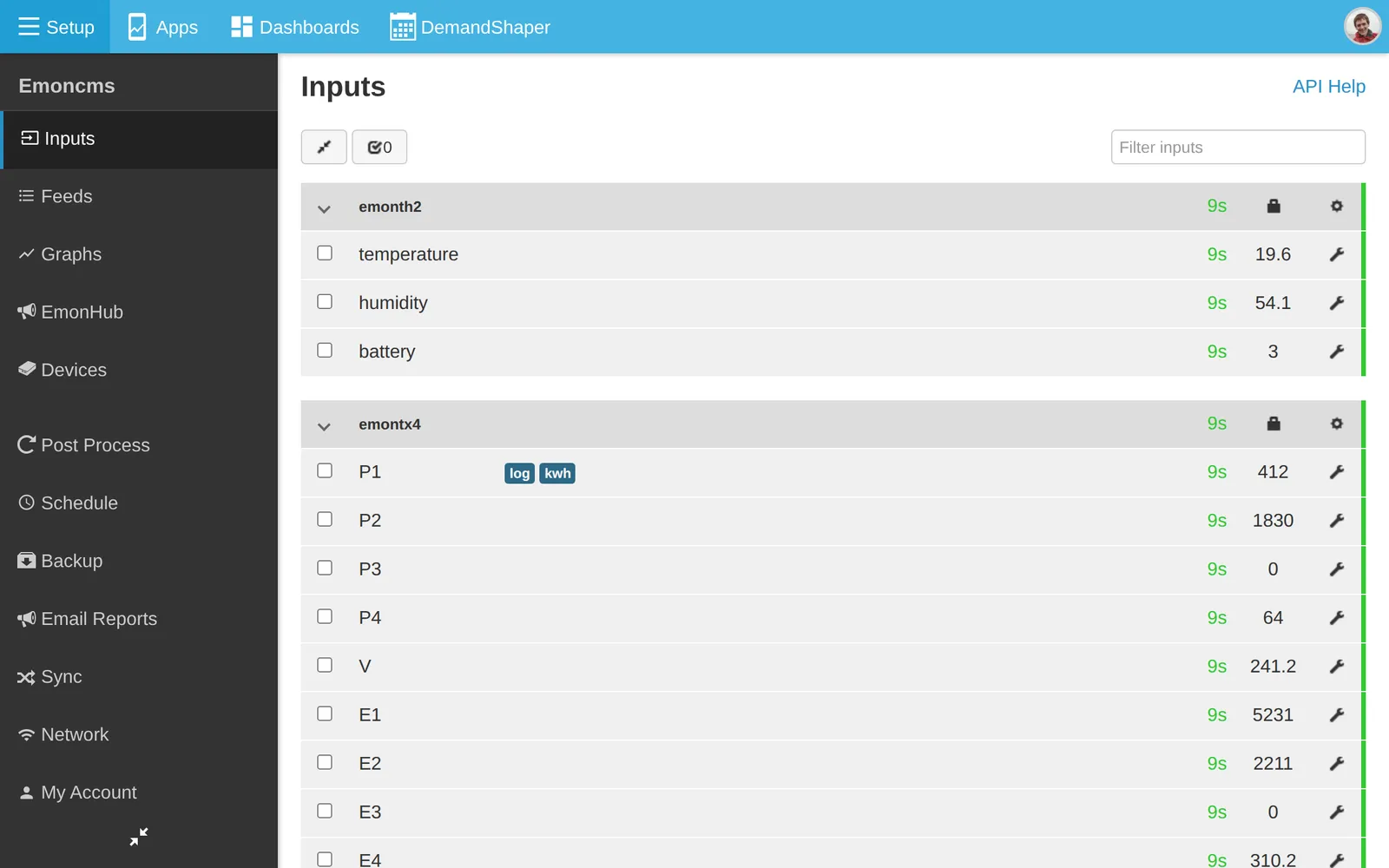
Each node header shows the node name, the device description and the time of the last update. The time is coloured by age. The header also has two icons:
Lock: Show device key.
Cog: Configure device using device template. See Devices.
Each input row shows the name, description, process list, last update, value and a spanner icon, Configure Input processing.
Toolbar:
Select all, then Edit or Delete for the selected inputs.
Filter inputs to search by name.
Clean unused devices removes inputs with no processing that have not updated for an hour. It appears only when there are such inputs.
Deleting an input removes its name and process list. If data arrives again, a new blank input is created. Feeds are not deleted.
To stop new inputs being created, click Disable further input creation at the bottom of the page.
API Help next to the page title opens the input API reference. See Posting data.
Input processing
Each input has a process list. The processes run in order each time a new value arrives. Each process can change the value passed to the next process, log it to a feed, or both.
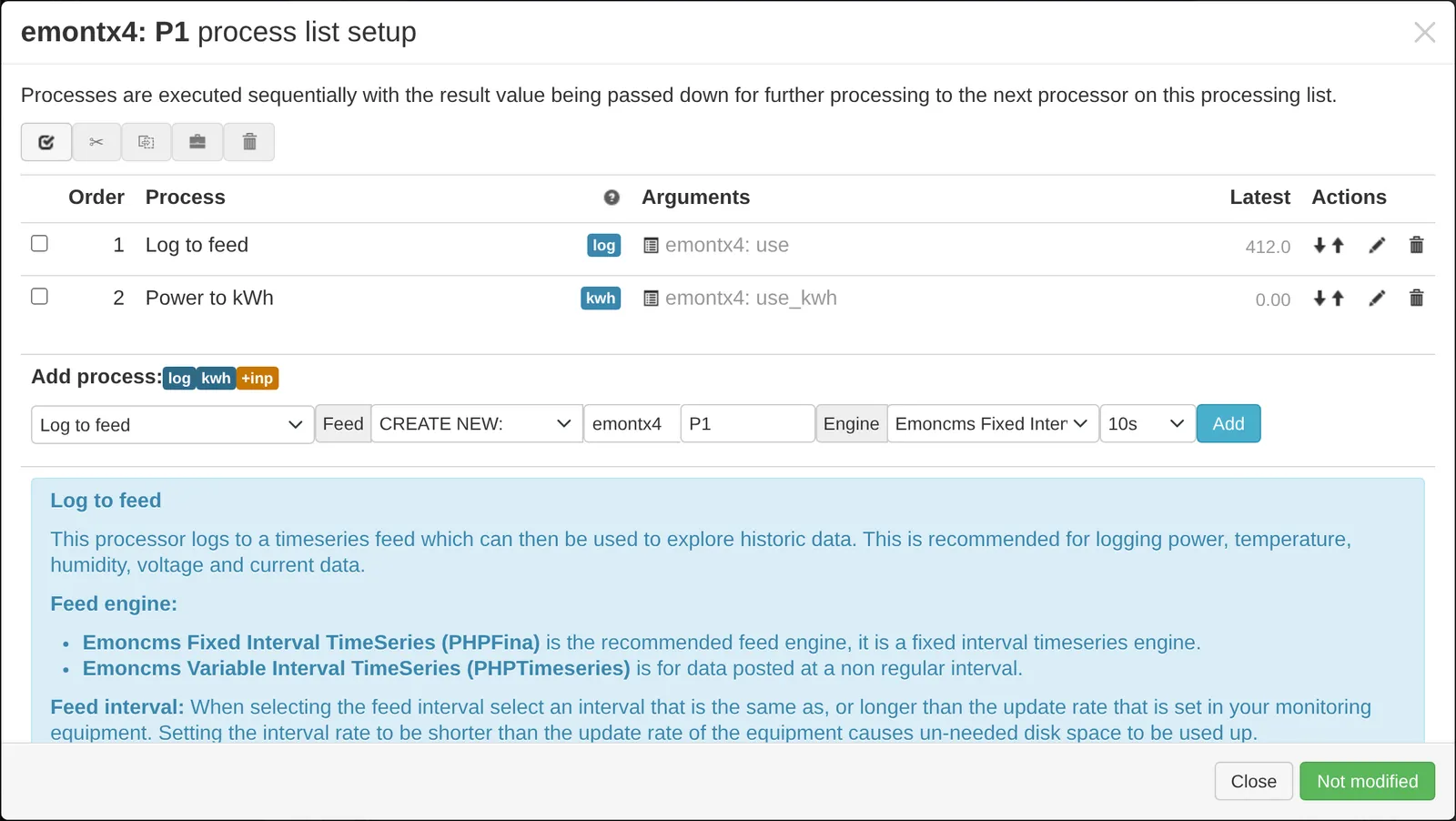
To edit the list, click the spanner icon on the input. The process list setup dialog opens.
Add a process
Select a process from the Add process: list. A description appears. It says whether the process changes the value passed on.
Fill in the argument. Depending on the process this is a value, another input, a feed or a schedule.
Click Add.
Click Changed, press to save.
The badges log, kwh and +inp are shortcuts for the most used processes.
Create a feed
For a process that writes to a feed:
Under Feed, choose CREATE NEW:.
Enter a Tag and Name. The tag groups feeds on the Feeds page. The node name is a good default.
Choose the Engine. Emoncms Fixed Interval TimeSeries suits most data.
Select the interval, from 10s to 1d. Do not choose an interval shorter than the rate at which the device sends data.
See Feeds for the engines.
Edit the list
Use the arrows to change the order, and the edit and delete icons on each row. Cut, Copy and Paste move processes between inputs.
Processes
Processes are grouped in the Add process: list. The most used:
Process |
Use |
|---|---|
Log to feed |
Record the value to a feed |
Power to kWh |
Convert power in watts to a cumulative kWh feed |
kWh Accumulator |
Record a cumulative kWh input, removing resets |
Wh Accumulator |
Record a cumulative Wh input, removing resets |
Log to feed (Join) |
Record the value and join gaps with a straight line |
x |
Multiply by a value |
+ |
Add a value |
+ input, - input, x input, / input |
Combine with another input |
Allow positive, Allow negative |
Set values of the other sign to zero |
Publish to MQTT via Redis |
Publish the value to an MQTT topic |
Other groups:
Calibration: multiply, offset, absolute value.
Limits: allow positive or negative, maximum and minimum value.
Input and Feed: combine with another input or feed, limit by another input or feed.
Power & Energy: kWh per day, kWh to power, and related conversions.
Conditional: skip the next process on zero, null or a comparison with a value.
Schedule: set the value to zero or null inside or outside a schedule.
Misc: accumulator, rate of change, daily maximum and minimum, reset value, go to step.
Processes marked REDIS: Requires REDIS. need Redis, which is installed on the emonPi and emonBase.
For examples, see Daily kWh and Pulse counting.