Feeds
A feed stores the history of a value as a time series. Most feeds are created by input processing. Open the page from Setup > Feeds.
Feeds page
Feeds are grouped by tag. Each group header shows the total size and the time of the last update.
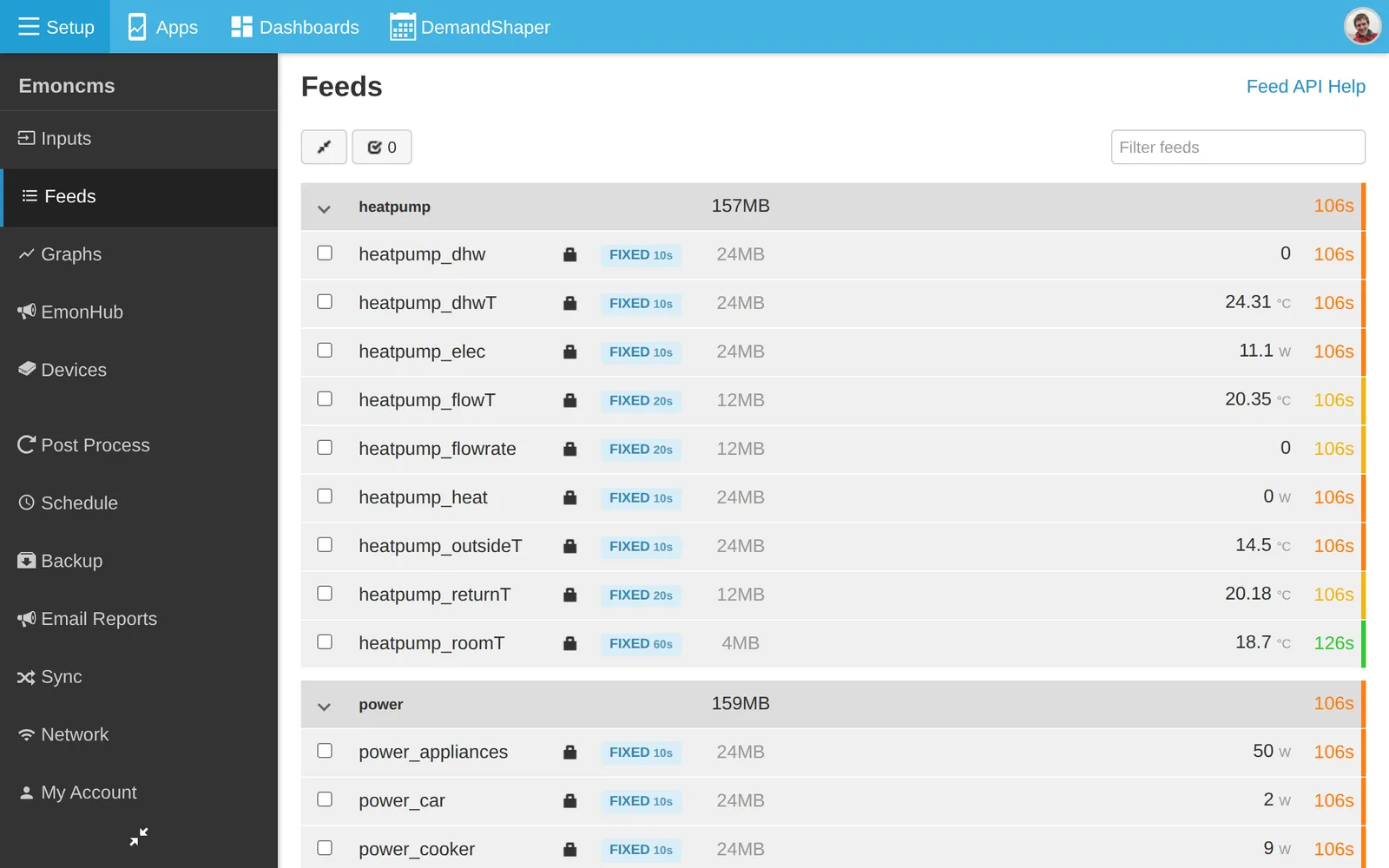
Each row shows the name, a public or private icon, the engine, size, process list, latest value with unit, and time of the last update. Hover over a row for the feed id, engine, interval, and start and end times.
Click a feed to open it in the graph view.
Toolbar, for the selected feeds:
Action |
Effect |
|---|---|
Edit |
Change name, tag, unit and public setting |
Delete |
Clear, trim or delete the feed |
Downsample |
Change fixed interval feeds to a longer interval |
Download |
Export as CSV. See Export CSV |
Graph view |
Open the selected feeds in the graph view |
Process config |
Edit the process list of a virtual feed |
Filter feeds searches by name.
At the bottom of the page:
Refresh feed size recalculates the size of each feed.
New feed creates a feed.
Import data pastes CSV data into a feed.
Engines
Engine |
Badge |
Use |
|---|---|---|
Emoncms Fixed Interval TimeSeries (PHPFina) |
FIXED |
Values at a fixed interval, such as every 10 seconds. Default for most data |
Emoncms Variable Interval TimeSeries (PHPTimeSeries) |
VARIABLE |
Values at irregular times, each stored with its timestamp |
Virtual |
VIRTUAL |
No stored data. Values calculated from other feeds. See Virtual feeds |
A fixed interval feed uses 4 bytes per interval, whether or not data arrives. At 10 seconds this is about 12 MB a year. A variable interval feed uses 9 bytes per value.
A missing value in a fixed interval feed is stored as null. Graphs show it as a gap, unless you fill nulls in the graph view.
Choose an interval
Use the rate at which the device sends data, or longer:
Device |
Interval |
|---|---|
emonPi, emonTx |
10s |
emonTH |
60s |
A longer interval uses less disk space. A shorter interval than the device sends does not add detail.
Create a feed
Most feeds are created from an input process. See Inputs.
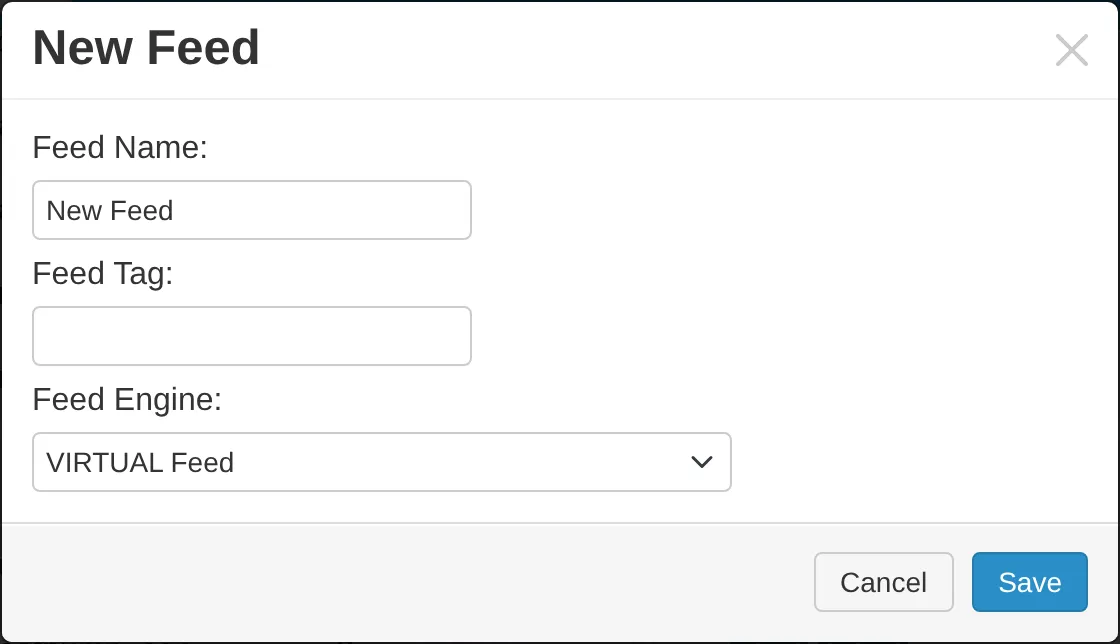
To create one directly, click New feed. Enter Feed Name and Feed Tag, choose Feed Engine, and for a fixed interval feed choose the interval. Click Save. Add data by input processing, the feed API or Import data.
Edit a feed
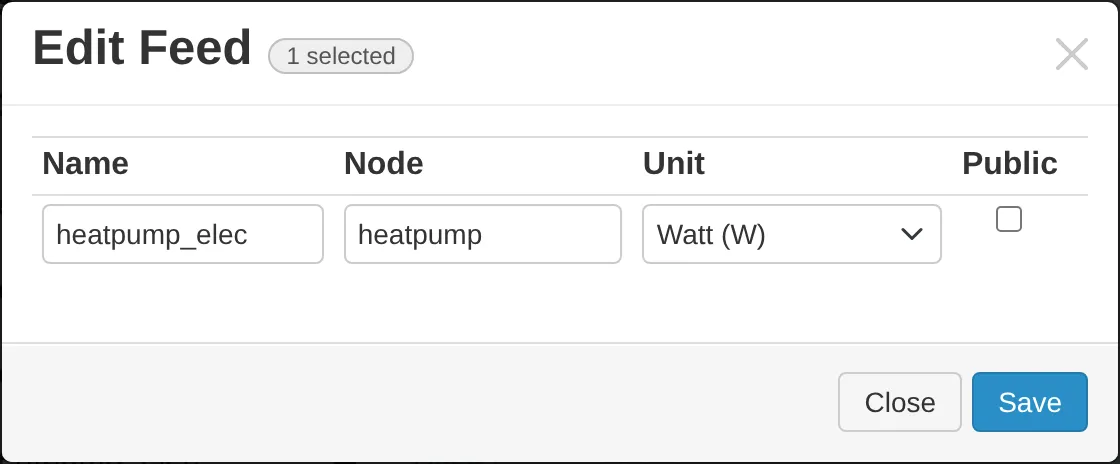
Tick the feed and click Edit:
Name and Node (the tag).
Unit: choose from the list, or Other to type one.
Public: anyone can read the feed without logging in. Public feeds can be shown on public dashboards and graphs.
Delete a feed
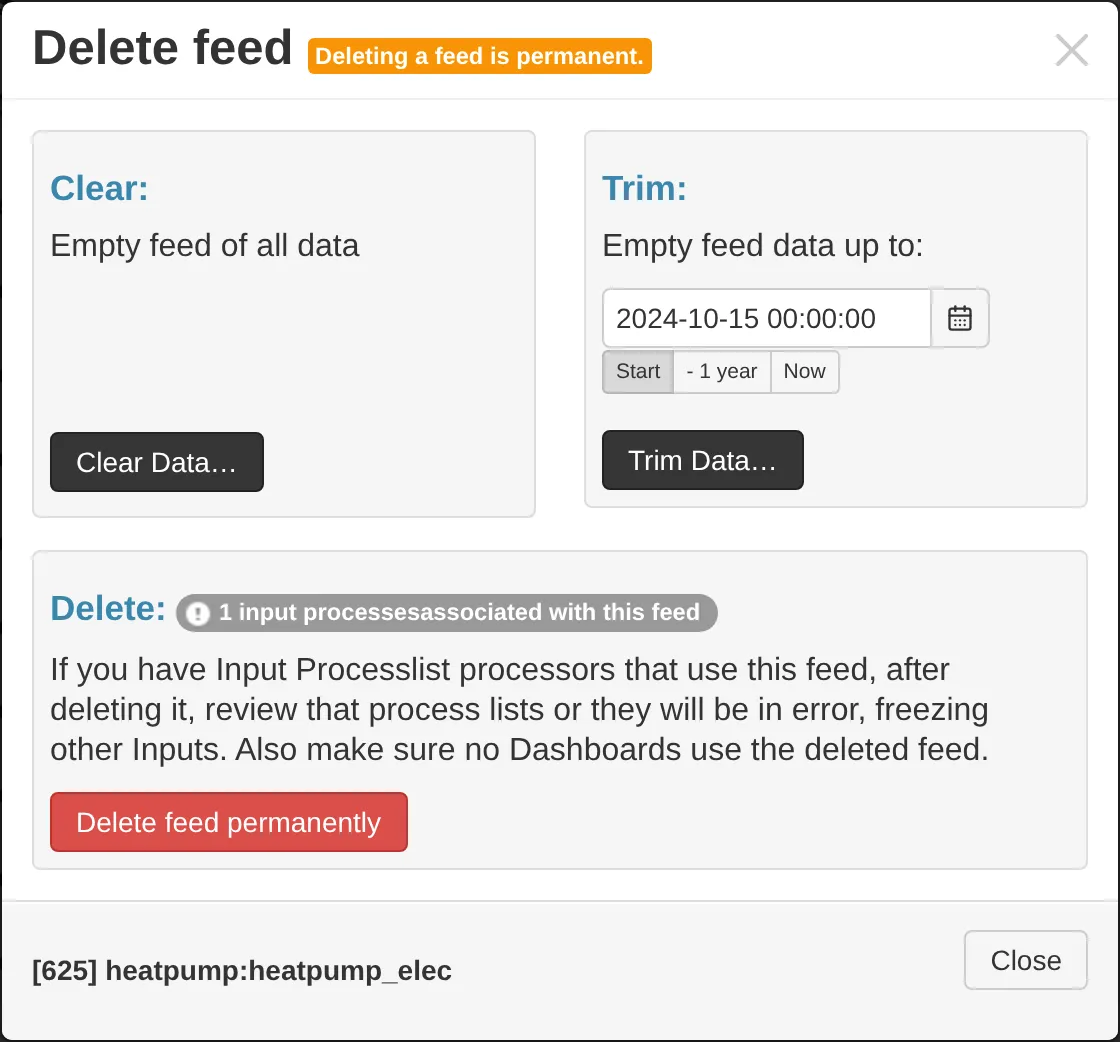
Tick the feed and click Delete. There are three options:
Clear: remove all data and keep the feed.
Trim: remove data before a date.
Delete: remove the feed and its data.
Warning
Deleting a feed is permanent.
To delete one period of bad data, use the editor in the graph view or the post process module.
Feed API
Feed API Help next to the page title opens the feed API reference.