Virtual feeds
A virtual feed calculates its values from other feeds each time it is read. It stores no data. Use it anywhere you would use a feed: graphs, dashboards and apps.
Common uses:
Convert units, for example °C to °F.
Calculate a ratio, such as heat pump COP.
Split use by tariff period with a schedule.
A virtual feed uses no disk space. On emoncms.org, virtual feeds are free.
A virtual feed cannot be logged to another feed or published to MQTT. Use input processing for that.
Create a virtual feed
On the Feeds page, click New feed.
Enter a Feed Name and Feed Tag. Leave Feed Engine set to VIRTUAL Feed. Click Save.
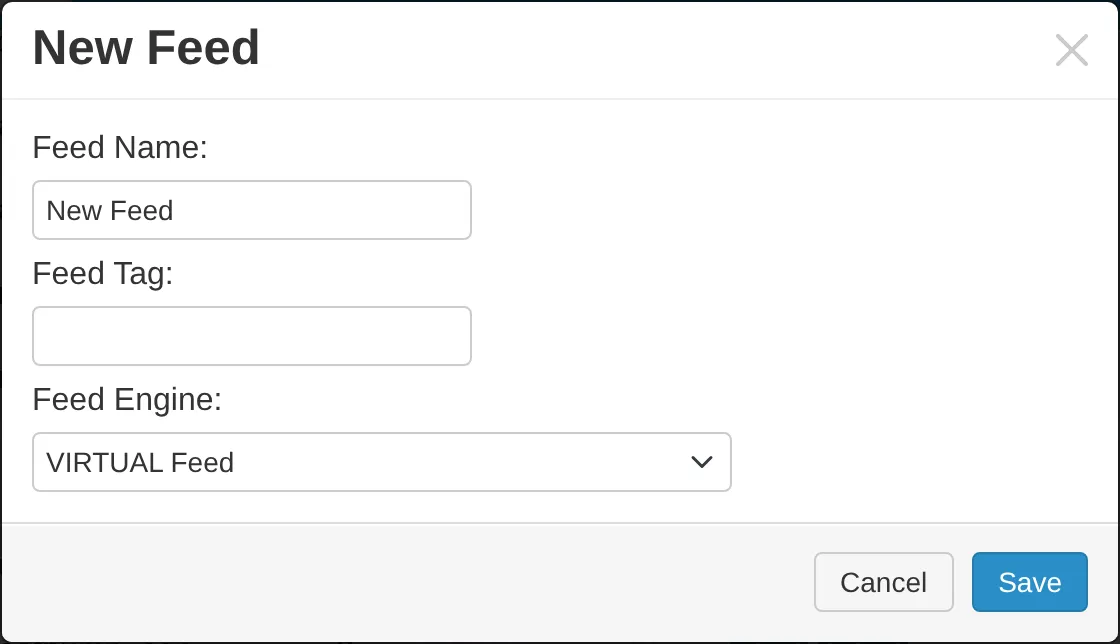
Tick the new feed and click the spanner icon (Process config) in the toolbar.
Add processes. The first must be Source Feed. The dialog works like the input process list. See Inputs.
Click Changed, press to save.
Example: °C to °F
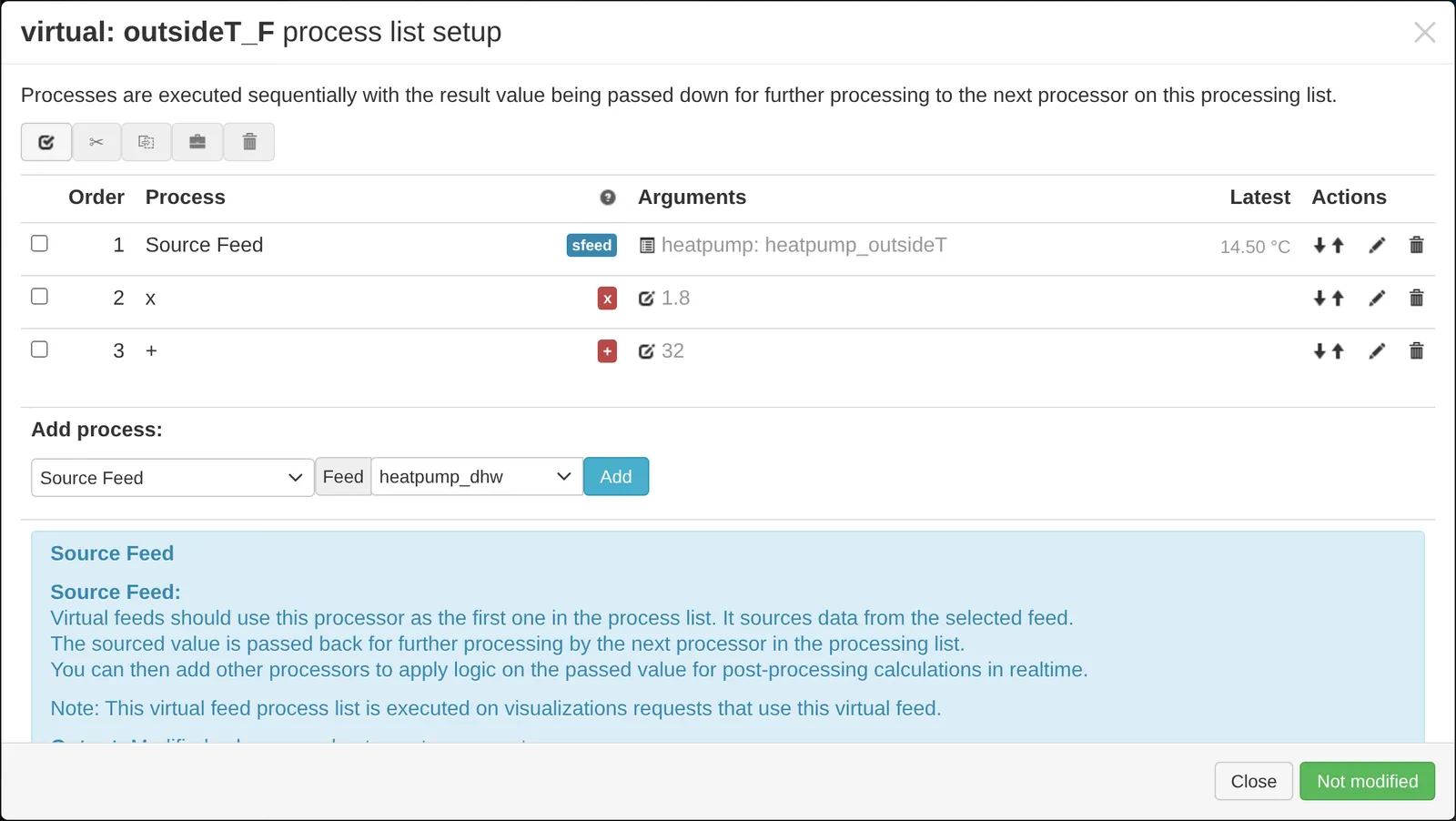
F = C × 1.8 + 32. Add these processes:
Source Feed: the temperature feed in °C.
x:
1.8.+:
32.
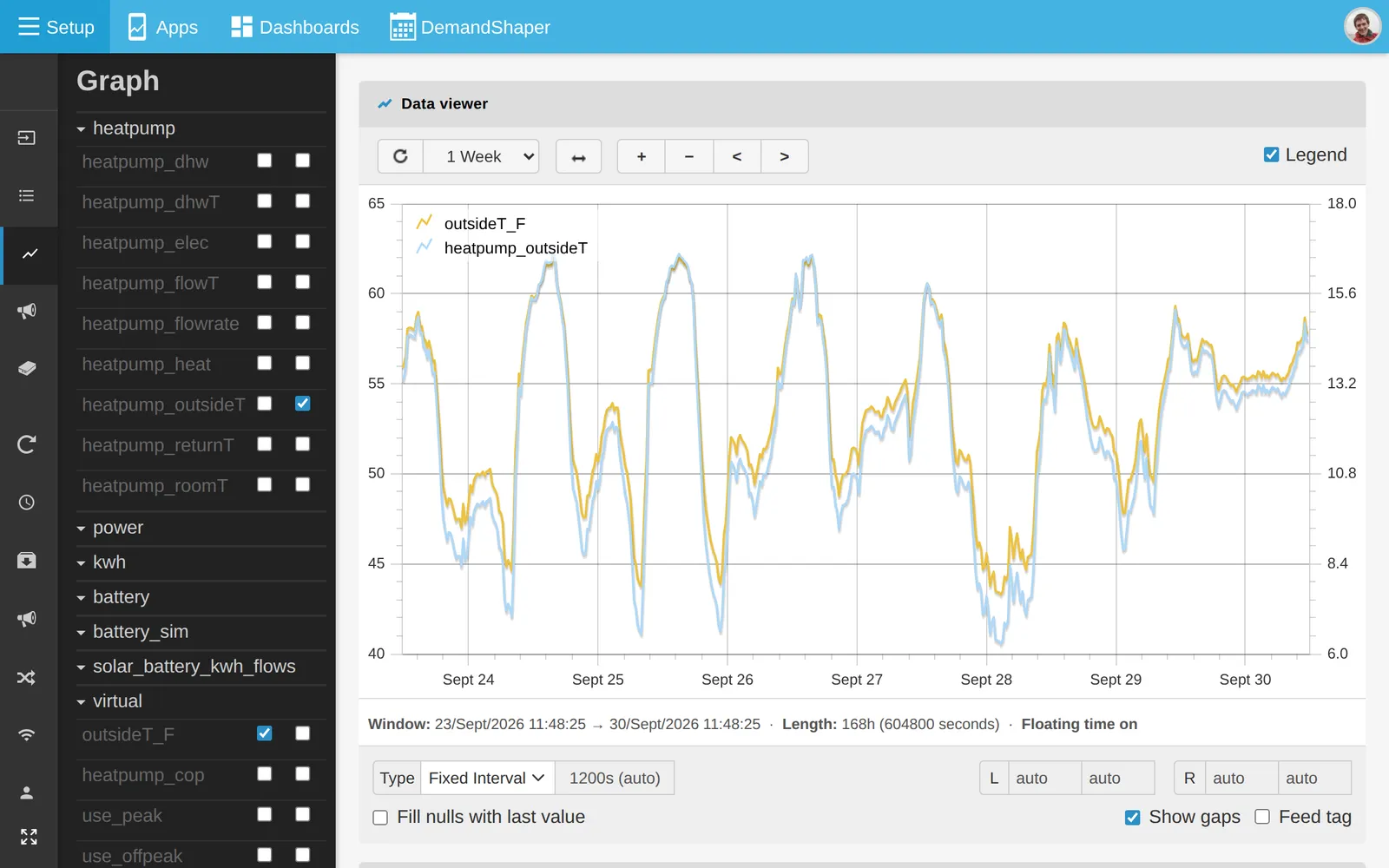
The virtual feed can be selected in the graph view and in dashboard widgets like any other feed.
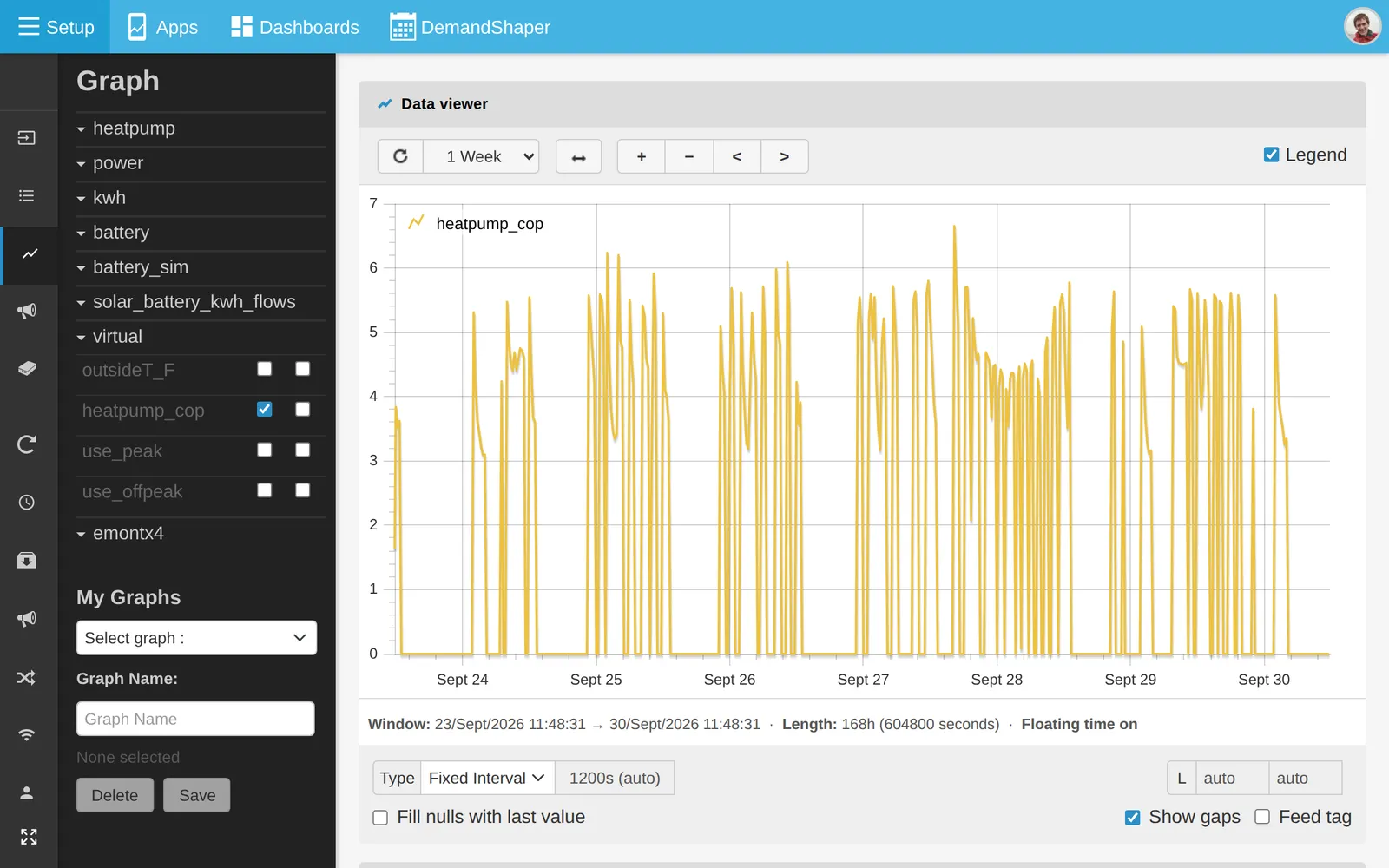
Example: heat pump COP
COP is heat output divided by electricity input. With feeds heatpump_heat and heatpump_elec:
Create a virtual feed, for example
heatpump_cop.Add Source Feed:
heatpump_heat.Add / source feed:
heatpump_elec.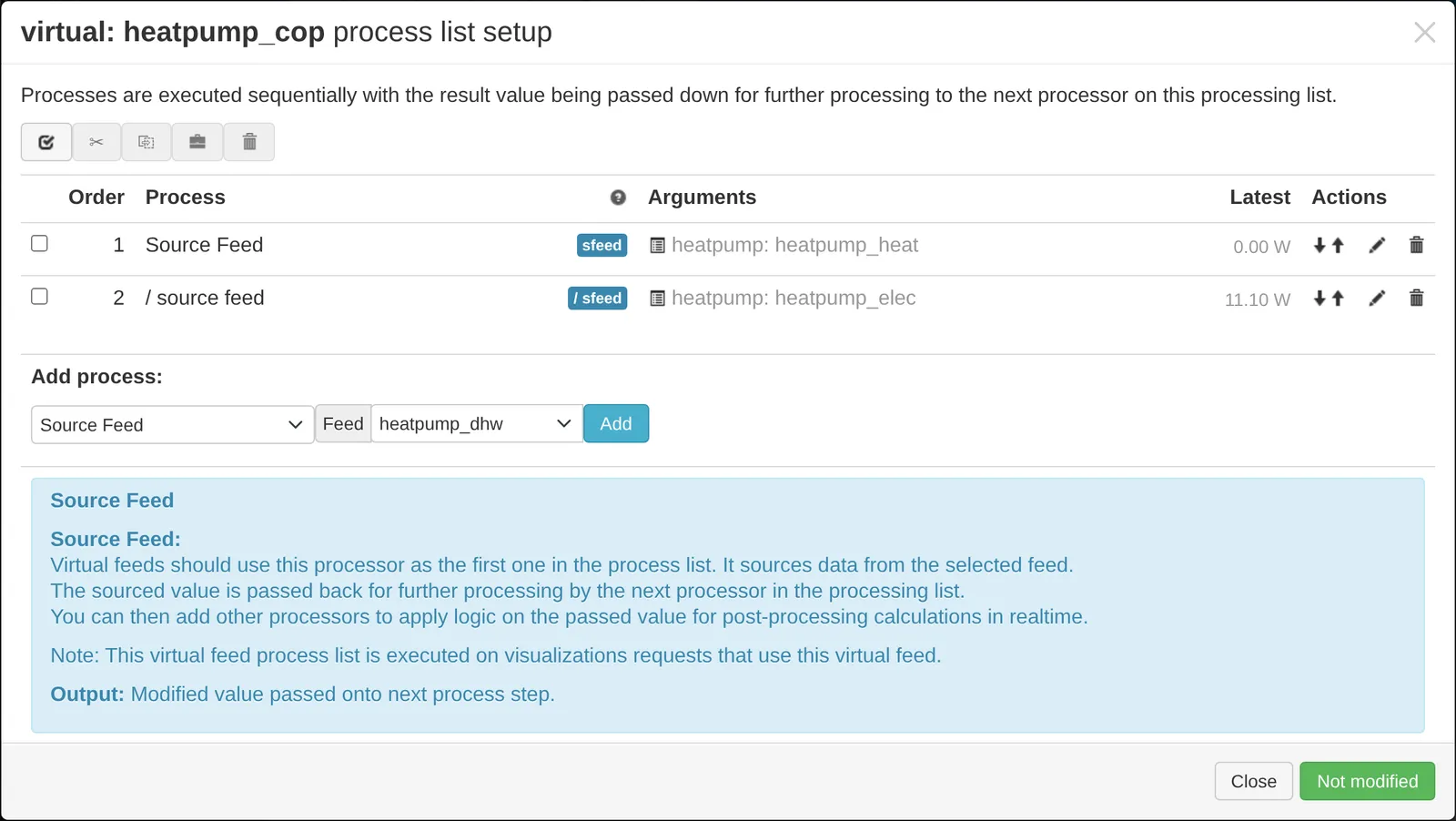
Save and open the feed in the graph view. Set y-axis limits, because COP can spike when the compressor starts and stops.
Example: use by tariff period
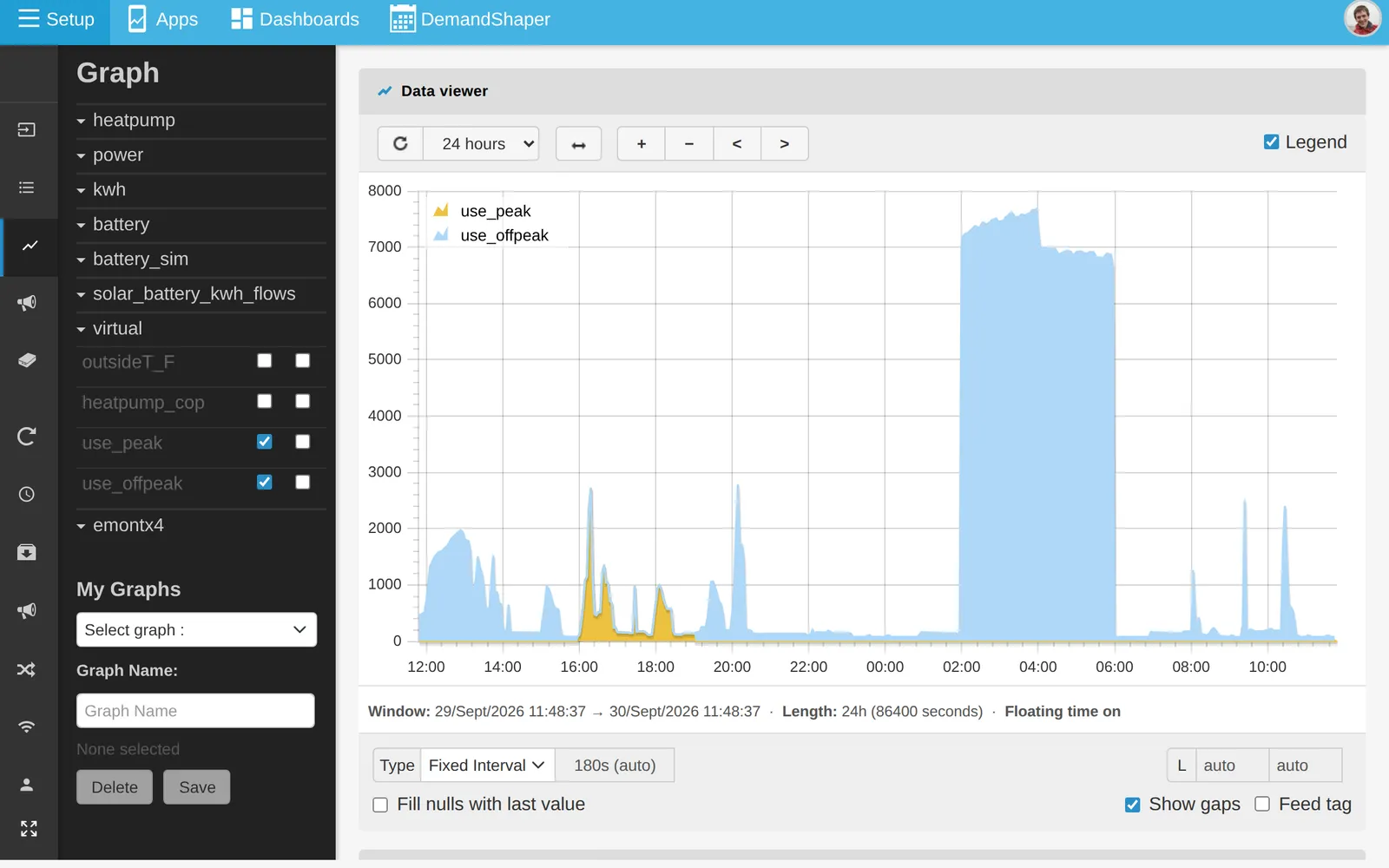
A schedule can split one power feed into one virtual feed for each tariff period.
For each period, create a virtual feed with:
Source Feed: the power feed.
If !schedule, ZERO: the schedule for that period. The value is set to zero outside the period.
The schedules must together cover the whole day with no overlap.
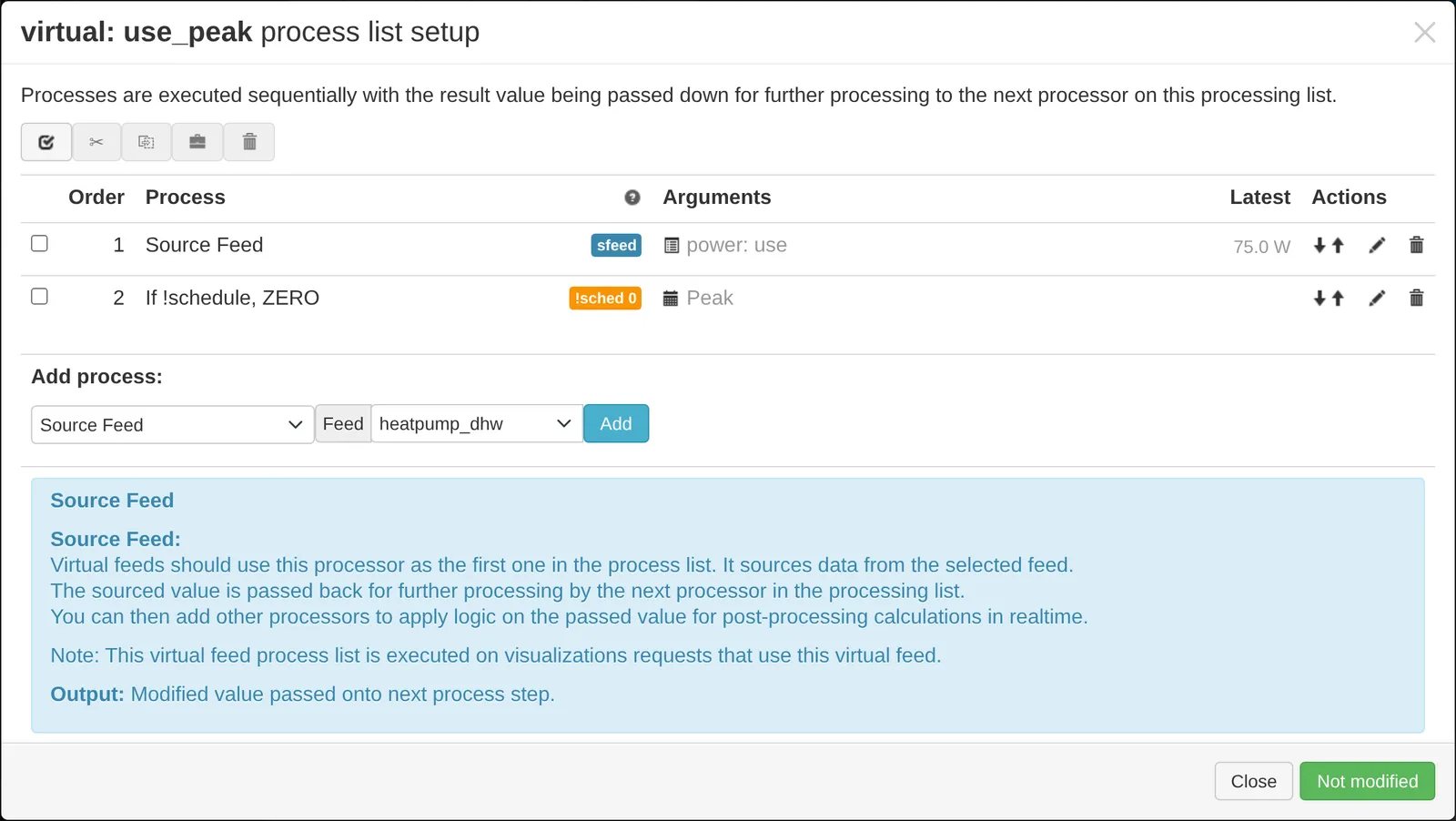
A single schedule also works. For example, with a daytime schedule of 08:00 to 17:00, use If !schedule, ZERO for the day feed and If schedule, ZERO for the night feed.
To view the result, open the virtual feeds together in the graph view and tick Stack in Feed Config.
Note
A virtual feed checks the schedule once for each value it returns. Use a fixed interval shorter than the schedule periods, for example 30 minutes or less. With Daily, Weekly or Monthly, the schedule is checked only at the start of each period, so the split is wrong. For daily peak and off-peak totals, split the energy with input processing. See Schedules.
Credits
Virtual feeds were created by N Chaveiro. See the original forum post and the emoncms.org announcement.