Dashboards
Build your own dashboard from widgets, charts, text and images. A dashboard can be public, for example to show a building’s energy use on a screen. Open dashboards from Dashboards in the menu.
For ready-made dashboards, see Apps.
Create a dashboard
Go to Dashboards and click New.
Click the edit icon (Edit Layout) on the new dashboard.
The editor opens with a Toolbox on the right. Click a category button and choose an item:
Widgets: dials, values, thermometers, gauges and indicators.
Charts.
Text, containers and images.
Click on the dashboard to place the item. Drag to move and resize it.
To set a widget’s feed and options, double-click it, or select it and click Configure selected item. Choose the Feed and click Save changes.
Click Changed, press to save.
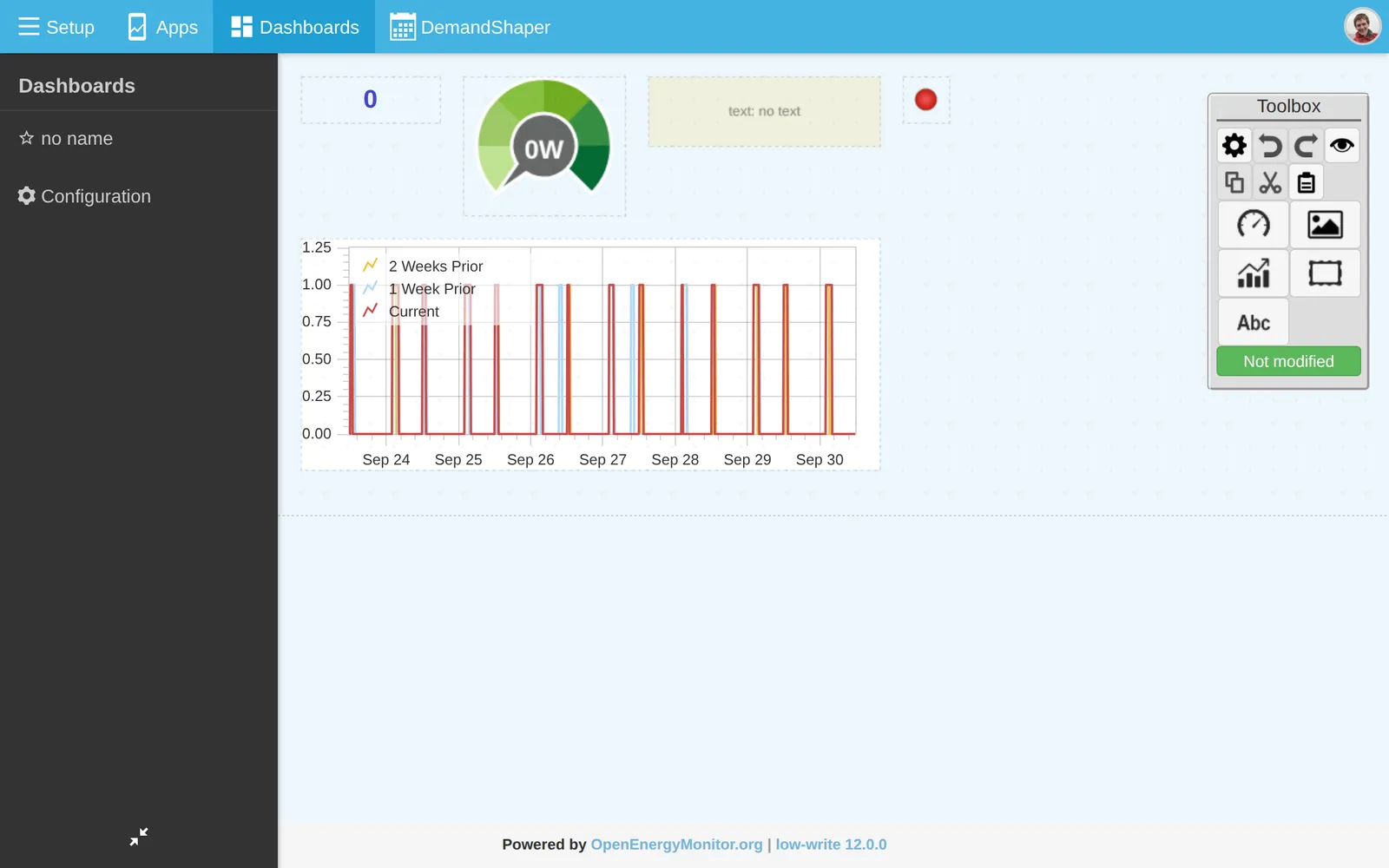
The Toolbox also has undo, redo, copy, cut, paste, and move to front or back.
Charts
Chart |
Shows |
|---|---|
graph |
A saved graph from the graph module |
realtime |
Live power over a short moving window |
zoom |
Power and daily, monthly or annual kWh, with zoom |
stackedsolar |
Solar and use, stacked |
orderbars |
Daily values in order of size |
timecompare |
One period against another |
Older dashboards with charts from the retired visualisation module are converted to these charts automatically.
Dashboard settings
In the editor, click Configure dashboard basic data to open Dashboard Configuration:
Dashboard name, Alias name and Description.
Background color and Grid size.
Main: show this dashboard first.
Published: activate the dashboard.
Public: anyone with the URL can see it.
Hide Menus: show the dashboard without the Emoncms menus.
Public dashboards
A public dashboard shows only feeds that are public. Make feeds public on the Feeds page with Edit. See Feeds.
Dashboard URLs:
URL |
Shows |
|---|---|
|
Dashboard 3 |
|
Dashboard with alias |
|
Main dashboard |
|
Main public dashboard of a user |
To show a private dashboard without logging in, add &readkey= and your read only API key. Anyone with the link can see the data.
Dashboard list
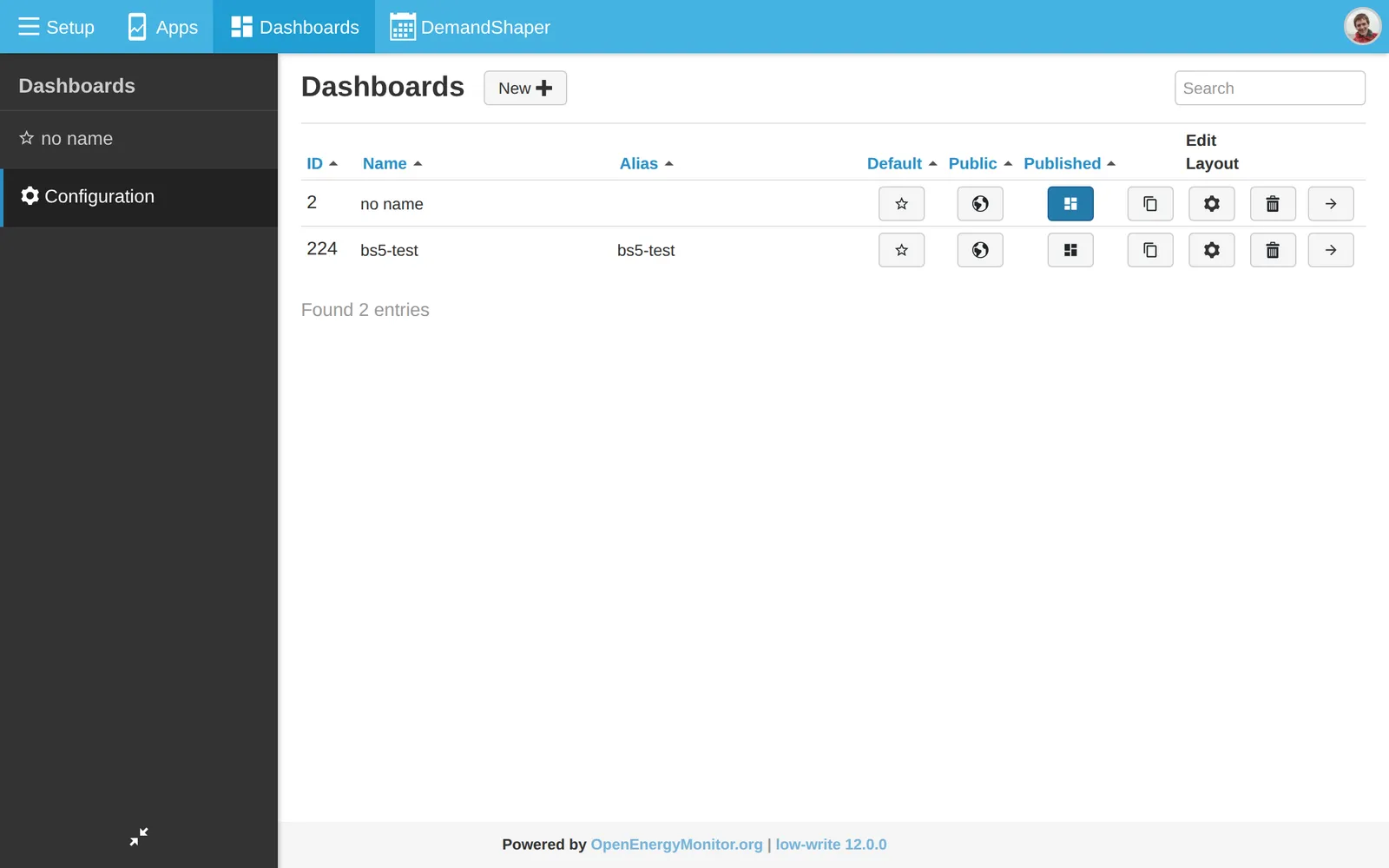
The list shows each dashboard with Name, Alias, main, Public and Published. The icons on each row clone, edit, delete and view the dashboard.
Warning
Deleting a dashboard is permanent.
Examples
See the Emoncms showcase on the forum.